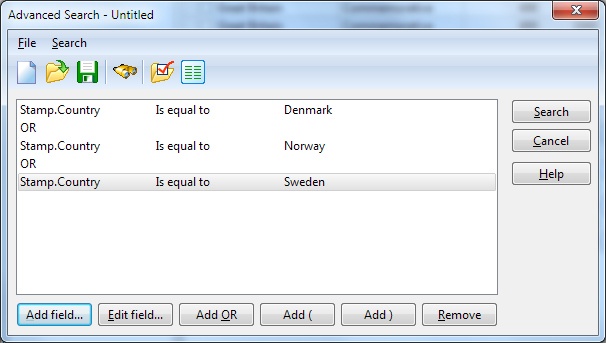
To use the Advanced search

Previous pageReturn to chapter overviewNext page
1.Choose Advanced from the Search menu.
 
You see the 'Advanced Search' window.
2.Click the Add field button.
 
You see the 'Add Field' window.
3.From the drop-down list the cursor is in, select the field you want to search in.
4.Select the operator from the drop-down list on the right.
5.Specify the value you want to search for.
6.Click the OK button to add the field to the search criteria.
7.If you want to add another field to the search criteria, repeat step 2 - 6.
 
Note: If you want to combine two field with the OR operator, click the OR button before you add the next field.
8.To search the subset only, press the Search subset button SubsetButton3 on the toolbar.
9.If you want StampCAT to mark all stamps found during the search, and then show these stamps (activate the subset), press the Show all button ShowAll2 on the toolbar.
10.If you want to save the search, choose Save from the File menu.
11.To execute the search, choose Search from the Search menu.