|
Getting started |
  
|
|
Getting started |
|
Welcome to StampCAT!
StampCAT is a powerful Windows application designed to help you catalog and manage your stamp collection. StampCAT will help you know what you have, where it is, and the total value of your collection.
The first time you start StampCAT, you see the "Welcome" screen. To open the sample database (Sample.mdb) click Open Sample Database. This database contains a few stamps to help you familiarize yourself with StampCAT. Before you can start cataloging your stamp collection, you must create your own database.
The main StampCAT window is divided into three parts:
| 1. | The menu/toolbar at the top of the window. |
| 2. | The view bar to the left. |
| 3. | The rest of the window is occupied by the active view. There are a total of 3 different views: Explorer View, Stamp View, and Lookup View. |
Here is the Explorer View:
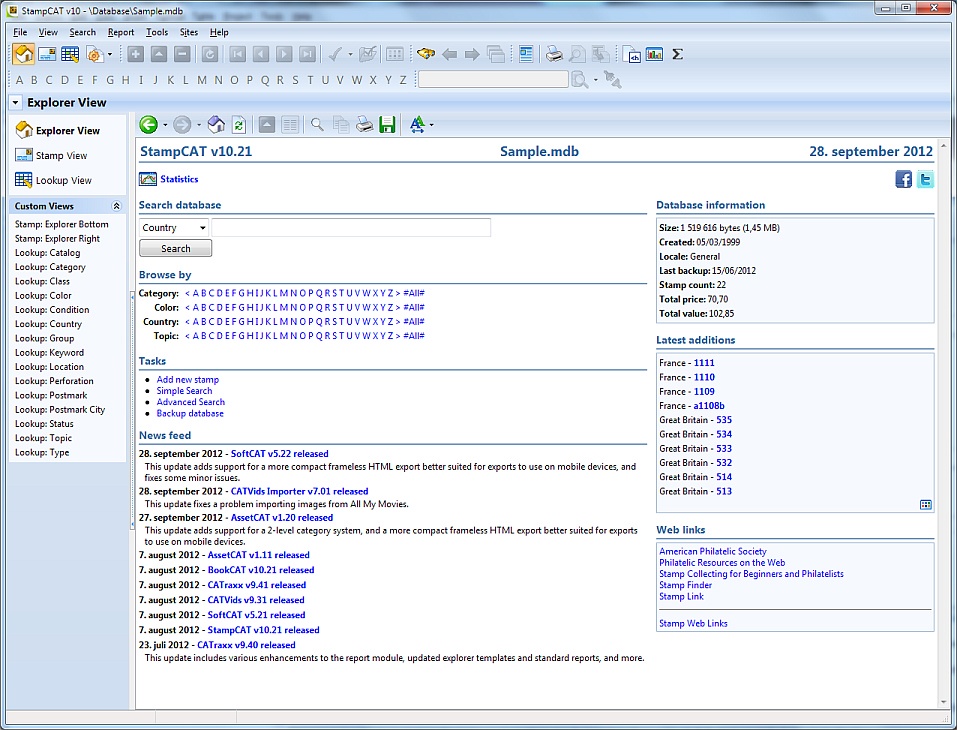
When you open a database, StampCAT opens the Stamp View by default. To activate another view, click the view you want to activate in the view bar, select from the View button on the toolbar, or use the View menu.
For example, to activate the Explorer View, open the View menu and choose Explorer View (you can also press the Ctrl+1 shortcut). The Explorer is a fully featured browser integrated into the main window that allows you to search/browse your database.
You will use the Stamp View the most. This is the view you use when you want to add new stamps to the database. To active the Stamp View, choose Stamp View from the View menu (or simply press the Ctrl+2 shortcut).
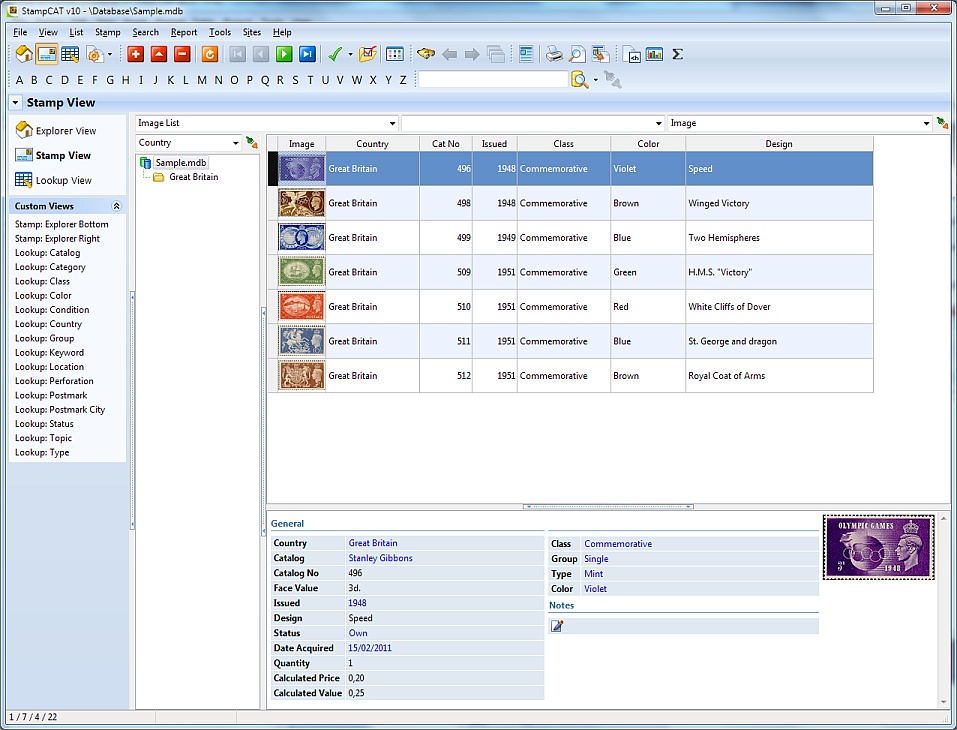
All views, except the Explorer view, utilize the same layout.
The main part of the view is occupied by the browse list, with the explorer pane below the list.
To the left of the browse list you see the grouping list, and above this, the drop-down list with available grouping definitions. The grouping feature is used to determine which stamps that are displayed in the browse list, and makes it possible to work with a subset of the database.
Above the browse list, you see three drop-down lists:
| • | The drop-down list to the left includes available list layouts. A list layout contains information about which fields to display in the stamp list. You can create as many list layouts as you want. |
| • | The drop-down list in the middle includes available sort orders. A sort order defines the order in which stamps are displayed. The data in the database remains the same; only the way data is being displayed changes. Note: You can also change the sort order by clicking the header of the column you want to sort on. |
| • | The drop-down list to the right includes available filters. A filter is used to determine which stamps that are displayed in the browse list, and makes it possible to work with a subset of the database. |
To add a new stamp, choose Add from the Stamp menu (or press the Ctrl+N shortcut).
To edit a stamp, simply double-click the stamp you want to edit in the browse list. This opens the 'Stamp Edit' window.
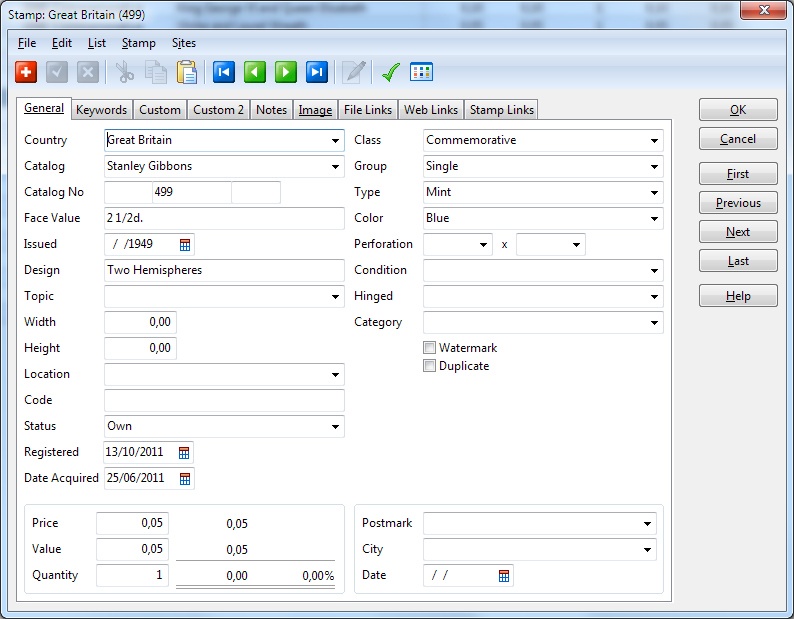
To close the data entry window, click the OK button (or choose Close Window from the File menu). All changes are automatically saved.
If you need support, don't hesitate to contact us. If you want to order StampCAT, please see our web site.
We hope you enjoy using StampCAT!